

UPDATED: April 10, 2018
These instructions are for those that have never created a SOLIDWORKS.com Customer Portal account (or for those that have switched companies and need to create a new account for the new company).
If you already have a SOLIDWORKS.com Customer Portal account that is current on maintenance and has yellow padlock icons on your account view this Tip & Trick on how to unlock it.
The Customer Portal account gains you access to a lot of items like Downloads and Updates, Enhancement Requests, SOLIDWORKS Knowledge Base (similar one to what we use on the DASI website), SOLIDWORKS forum, CAD Admin Dashboard, My.SolidWorks.com, etc… to just name a few. It is always a good idea for all SOLIDWORKS users to create a Customer Portal account for yourself and whomever in your IT group that is supporting the installs and upgrade of SOLIDWORKS at your company. If your SOLIDWORKS serial number is not current on maintenance you can still create an account but you will be limited as to what you have access to.
Let’s get started on creating your new SOLIDWORKS.com Customer Portal account:
- Go out to SolidWorks.com
(At the time of this blog post update, the SW Customer Portal link is in the person icon in the upper right corner)

Tip: You can also skip the first few steps and go directly to the portal or even bookmark this site for future use of the SOLIDWORKS Customer Portal.
- Click on the ‘Create a SOLIDWORKS ID’ button.

- Enter your email address. Note: Using a business email address will reduce the chance that SOLIDWORKS needs to review your request for an account. Using an email address like @gmail.com or @yahoo.com almost always needs to be reviewed by SOLIDWORKS or manually requested to be linked/unlocked from SOLIDWORKS by us, your SOLIDWORKS reseller. However, these non-company specific email addresses can still be used.
- Enter your SOLIDWORKS Serial Number: 16 or 24 digits without spaces or punctuation. If you need to find your serial number, open the SOLIDWORKS program, go to the Help menu, Select ‘About SOLIDWORKS’, click on the hyperlink to ‘Show Serial Number’. If you copy and paste the serial number you will need to remove the spaces and you may also need to retype in the last 4 digits.

- Review your customer information and click ‘Yes’
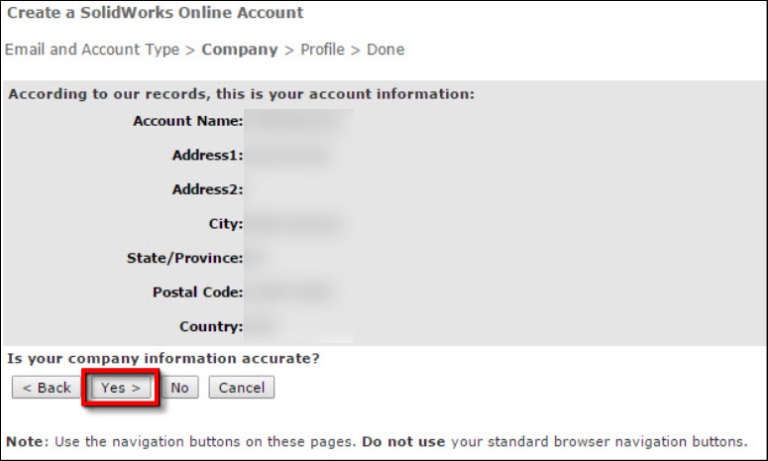
- Type in your First and last name, then type in a password, twice.

- You may be prompted to select the version of SOLIDWORKS that you are using. Click on the button on the right edge to have a pop-up window allowing you to select the version. (Pop-ups must be allowed in your web browser or you can click on the link or button to unblock.) In the pop-up window, always select the latest SOLIDWORKS version that is listed, even though you may only be running an older version of SOLIDWORKS on your computer. This allows the account to be unlocked from it’s creation.

- Once the account is created, an email will be sent out to you to confirm the account creation. If you don’t finish this process by clicking on the link in the email and unlocking the account, you won’t be able to get in.
Welcome to your new SOLIDWORKS.com Customer Portal account. Happy exploring.
https://customerportal.solidworks.com/
If, instead of the screen saying that an email was sent to you for completion of the account creation, you get a message saying that there is a mismatch of data and you are presented with a Service Request number (something like a 1-…. Number) write it down and email or call your SOLIDWORKS Reseller. If you are a DASI Solutions customer email us the Service Request number at TechSupport@DASI-Solutions.com