

Windows 7 and Windows 8 have many enhanced security features to protect your computer. One such feature is the ability to block downloaded files that may potentially damage your operating system.
This can create a problem when installing SOLIDWORKS with the Installation Manager. When the installation files are downloaded and extracted it is possible that Windows will block the HTML files and scripting that creates the user interface for the Installation Manager.
This results in the Installation Manager not displaying any options and showing a white screen.

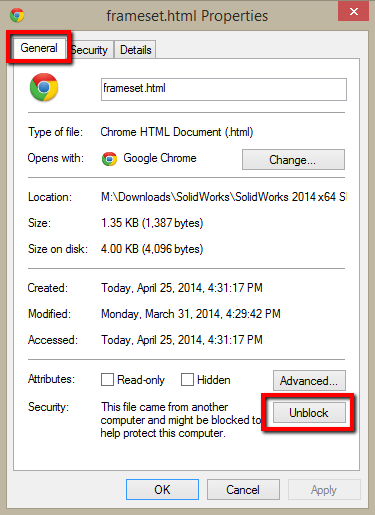 To correct this issue, the files for the Installation Manager will need to be unblocked.
Navigate to the <SOLIDWORKS Download>\sldim\lang\english\HTML folder that was extracted from the download.
Right click on a file found in the folder and select Properties.
On the General tab select the ‘Unblock’ option.
Do this for every file in this folder. The list of files should include the following:
frameset.html
framesetstartup.html
header.html
imfunc.js
navpanestartup.html
sldim.css
sldim_navepane.css